Use Outlook automatic account setup for your email
NOTE: If you’re using Outlook 2010 with Office 365 for business, you need to set up your desktop before you can set up Outlook to access your account. See Set up Office 2010 desktop programs to work with Office 365 for business.
In many cases, Outlook can set up your account for you with only an email address and a password. When you launch Outlook for the very first time, the Auto Account Wizard launches.
To automatically set up an account
- Open Outlook, and when the Auto Account Wizard opens, choose Next.NOTE: If the wizard didn't open or if you want to add an additional email account, on the toolbar choose the File tab.
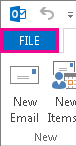
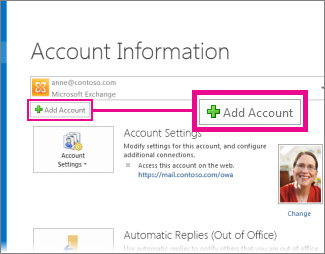
- On the E-mail Accounts page, choose Next > Add Account.
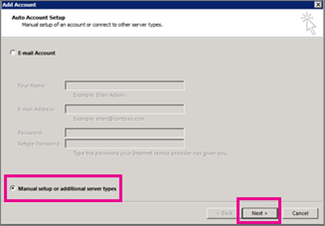
- On the Auto Account Setup page, enter your name, email address, and password, and then choose Next.NOTE: If you receive an error message after choosing Next, double check your email address and password. If both are correct, choose Manual setup or additional server types. For instructions on this option, see the next section.
- Choose Finish.
Automatic setup didn't work
If setup didn't complete, Outlook may ask you to try again using an unencrypted connection to the mail server. If that doesn't work, you can choose Manual setup or additional server types.
NOTES:
- If you're using Outlook 2016, you can't use the manual setup type for Exchange accounts. Contact your administrator if the automatic account setup fails.
- If you upgrade to Outlook 2016 from an earlier version, and you receive errors about not being able to log on to or start Outlook, it's because the Exchange Autodiscover Service isn't configured or isn't working correctly. For details about how to get around this issue, see “Outlook cannot log on” or “Cannot start Microsoft Outlook” error displays in Microsoft Outlook 2016.
To manually set up an account
- Choose Manual setup or additional server types > Next.
- Select the type of account you need, and choose Next.
- Fill-in the following information:
- Your Name, Email Address, Account Type, Incoming mail server, Outgoing mail server, User Name, and Password.NOTES: If you have an Office 365 for business or an Exchange account, see Outlook settings for POP and IMAP access for Office 365 for business or Microsoft Exchange accounts for your incoming and outgoing mail server information.For all other accounts, including those from your local Internet Service Provider (ISP), contact your administrator or your ISP's help desk for this information.
- Choose Test Account Settings to verify the information you entered.NOTE: If the test fails, choose More Settings. Your administrator might have you make additional changes, including entering specific ports for the incoming server (POP3 or IMAP) or outgoing server (SMTP).
- Choose Next > Finish.
Looking for help adding a Gmail account to Outlook? You'll need to Prepare your Gmail account for connecting to Outlook and Office 365 and then Import Gmail to Outlook.

Không có nhận xét nào:
Đăng nhận xét